

Stack Reduction
The Stack Reduction Tool allows users to reduce the file size of stack datasets. This is achieved by 4 options:
Z cropping only where Z stacks are reduced to a smaller stack size with the middle Z stack being the best-in-focus plane.
Projection only where Z stacks are reduced to 1 plane using different Z reduction methods.
Z cropping+Projection, where Z-stacks are reduced followed by Projection.
Channel Extraction, where a subset of channels are saved without reduction through the Z dimension.
Step |
Function |
|---|---|
1 |
Open an acquired dataset in the MCAM™ Viewersoftware. |
2 |
Navigate to Tools > Stack Reduction. A panel will open on the right. |
3 |
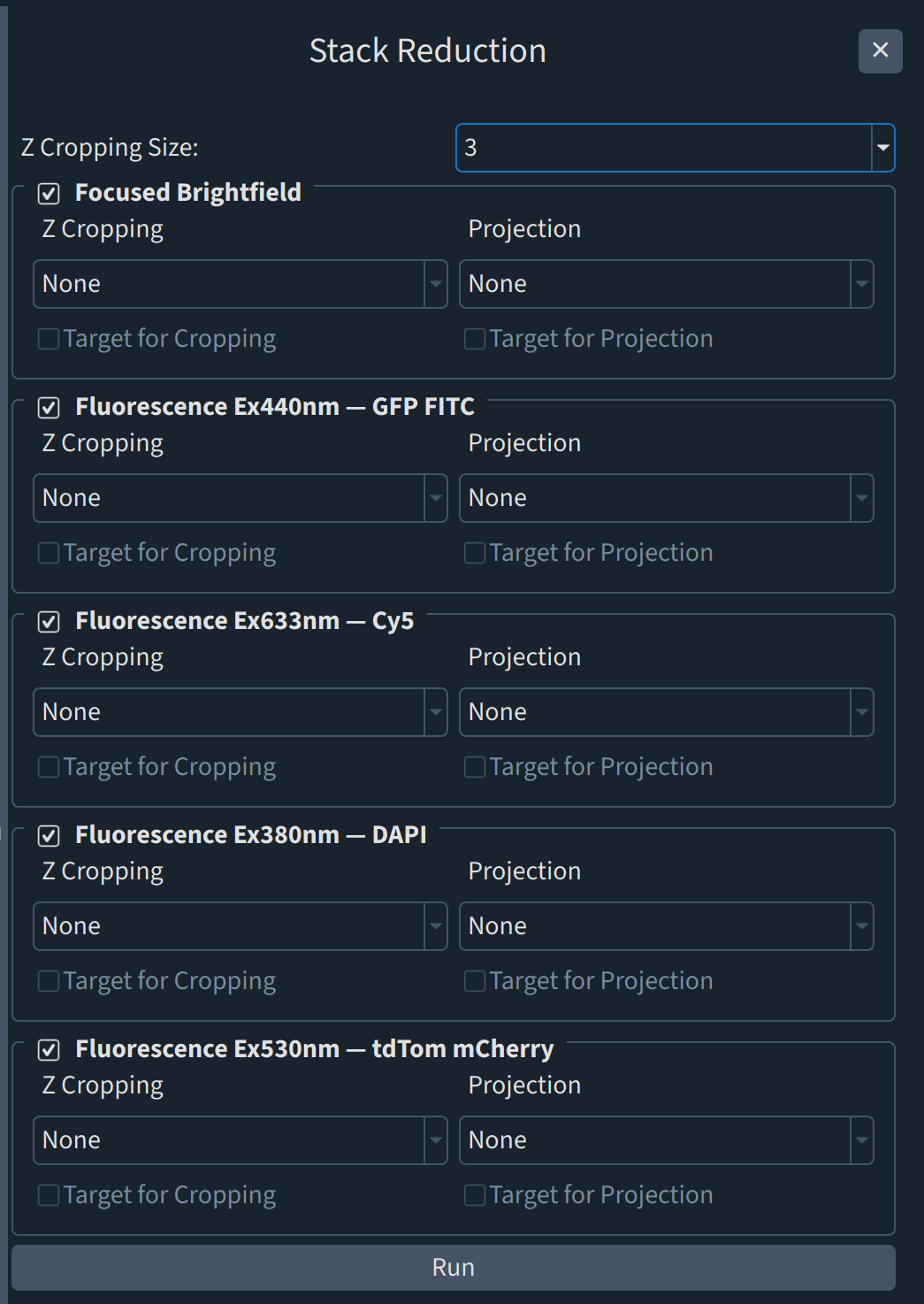
Option 1: Z Cropping only Select the Z cropping size from the dropdown menu. For example, if you select “3”, your Tiff stacks will be reduced to 3 Z-stacks, with the middle plane the best-in-focus plane. Go to the channel(s) of interest, and select the intended Z cropping method from the Z cropping dropdown menu. This Z cropping method will be applied to all other channel(s) automatically. Deselect the channel(s) that are not needed. Only the channels that are selected will be kept through this reduction. Optional: Check the box for “Target for Cropping” if you want the best-in-focus planes of all channels for the selected z cropping to be dependent on this target channel. If no “Target for Cropping” is checked, best-in-focus planes will be selected on a per channel basis for z cropping. Click “Run”. Option 2: Projection only Select the channel(s) of interest, and select the intended Projection method from the Projection dropdown menu for respective channel(s). Deselect the channel(s) that are not needed. Only the channels that are selected will be kept through this reduction. Optional: Check the box for “Target for Projection” if you want the best-in-focus planes of all channels for the selected projection to be dependent on this target channel. If no “Target for Projection” is checked, best-in-focus planes will be selected on a per channel basis for projection. Click “Run”. Option 3: Z Cropping+Projection Follow the steps from Option 1 followed by Option 2. Option 4: Channel Extraction Deselect the channel(s) that are not needed. Only the channels that are selected will be kept. Leave both Z Cropping and Projection as None in their respective dropdown menus. This will leave the z dimension of the selected channels unchanged. |
4 |
The results are saved in a folder named “projection_results_timestamp” in the provided dataset’s folder with the metadata and the Tiff files containing the processed images. |