

Region of Interest (ROI) Extraction Tool
The Region of Interest (ROI) Extraction Tool allows users to select the regions they are interested in, with an output folder of tiff or video files containing only the regions users selected.
Step |
Function |
|---|---|
1 |
Open an acquired dataset in the MCAM™ Viewersoftware. |
2 |
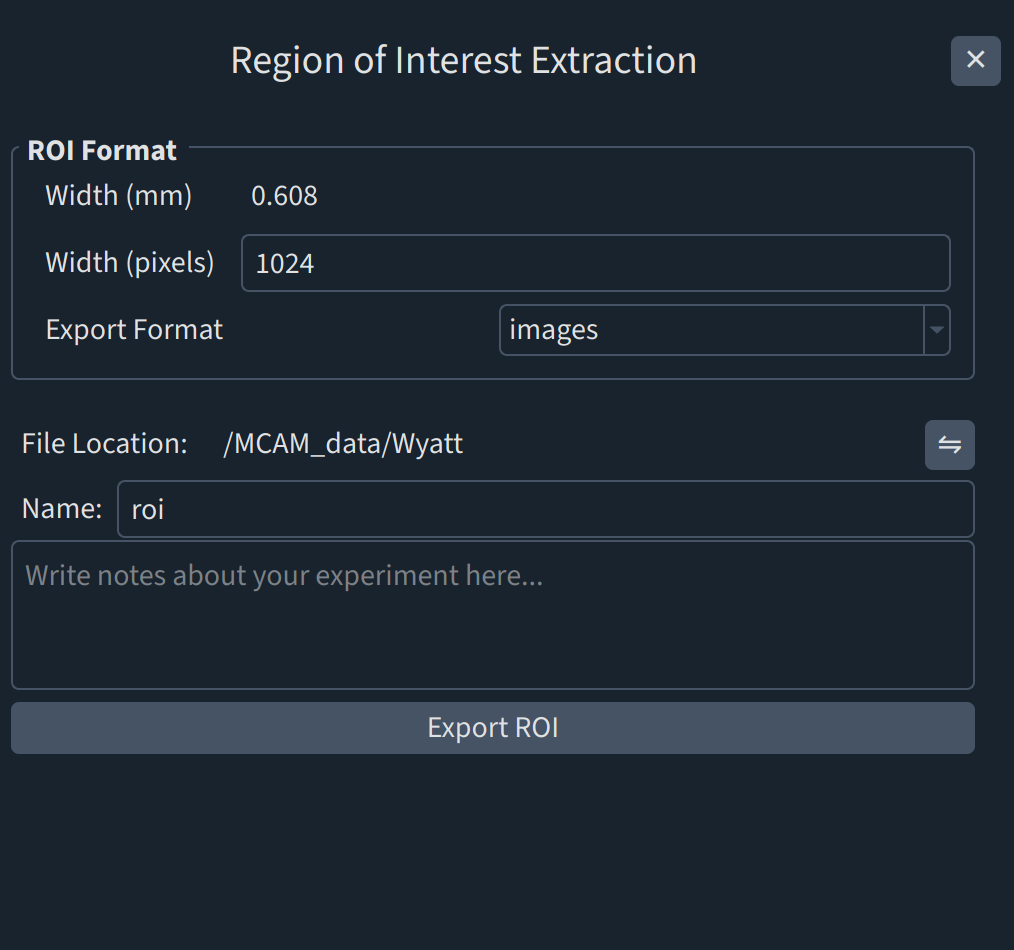
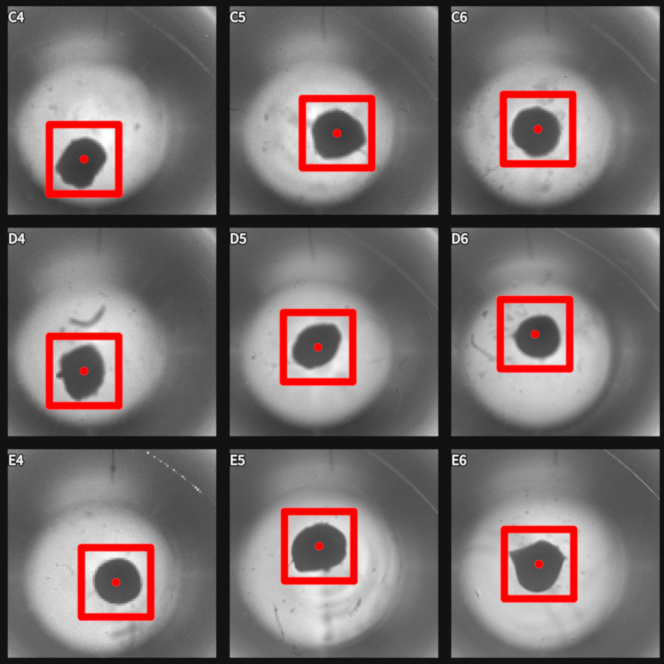
Navigate to Tools > Regions of Interest. Red boxes with a dot in the center will appear on the images, and a panel will open on the right. |
3 |
To select the regions of interest: Click the red box perimeter and drag to adjust it to the intended size. Click the red dot and drag to move the red box to the regions of interest. Users can move the red box individually in each well but the size of the box is the same for all wells. |
4 |
Determine the export format by selecting “Images” for image files or “mp4” for video files. |
5 |
(Optional) Select a location for the new results folder containing tiff or mp4 files of the selected region of interest. By default, the location of the new folder is in the same folder where the folder containing original images/videos is located. |
6 |
(Optional)Enter a name for the new output folder. By default, the new folder is named “roi_(timestamp)”. |
7 |
Click “Export ROI” to export tiffs/mp4s of the ROIs selected. |