

Full Well Scan
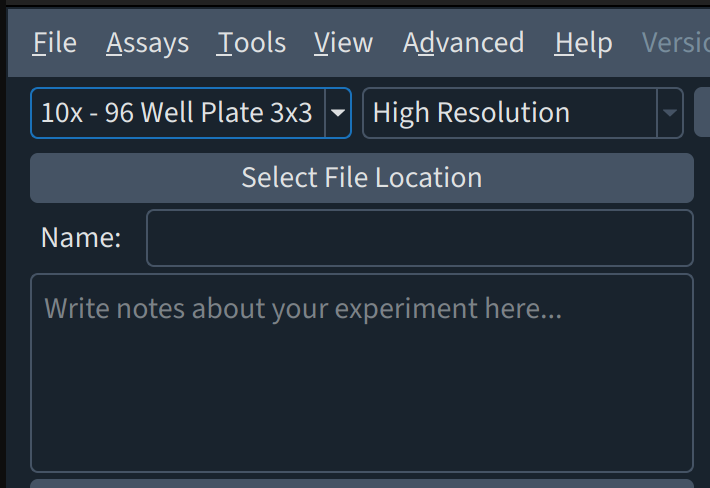
A full-well scan allows users to scan the entire well of the well plates used in contrast to imaging a portion of wells imaged in a single-position image acquisition. Multiple groups image scan modes may be possible with your instrument and are configured during setup. The example here uses the 3x3 scan mode.
Step |
Function |
|---|---|
1 |
Open the MCAM software. |
2 |
In the MCAM software, go to the top left corner and click on the dropdown menu to select the 3x3 scanning mode. |
3 |
Select the illumination mode of choice on the left panel. |
4 |
Determine the imaging parameters (brightness, exposure time, analog/digital gains), and stage (Z) positions. |
5 |
Go to Assay > Acquire XYZC stack. A panel should have opened on the right, with the last illumination mode of choice and imaging parameters shown in the panel. |
6 |
Enter a “Start height” and “End height” representing z-stage positions where the z-stack will start and stop. Sometimes it works well to find an optimal focal plane and choose this as the “Mid height” and then set the Start and End a millimeter below and above respectively. Enter either “Step size” or “Number of Steps” to determine the z-axis resolution. The second of these two parameters will update automatically. |
7 |
Select a File Location. Always select a folder on the “MCAM_data” drive to store data from MCAM acquisitions. The “File Location” will be displayed in the panel once defined. |
8 |
Enter a Name for the acquisition. A timestamp will automatically be appended to the selected name. |
9 |
Click Acquire XYZC Stack to initiate the acquisition. |