

Acquire a Z Stack
A z-stack is a series of images taken at different focal planes along the z-axis, capturing a 3D representation of a specimen. It’s commonly used in microscopy to reconstruct detailed structures or features within samples. With the MCA+M, z-stacks can be easily acquired by automating movement of the z-stage alongside image acquisition.
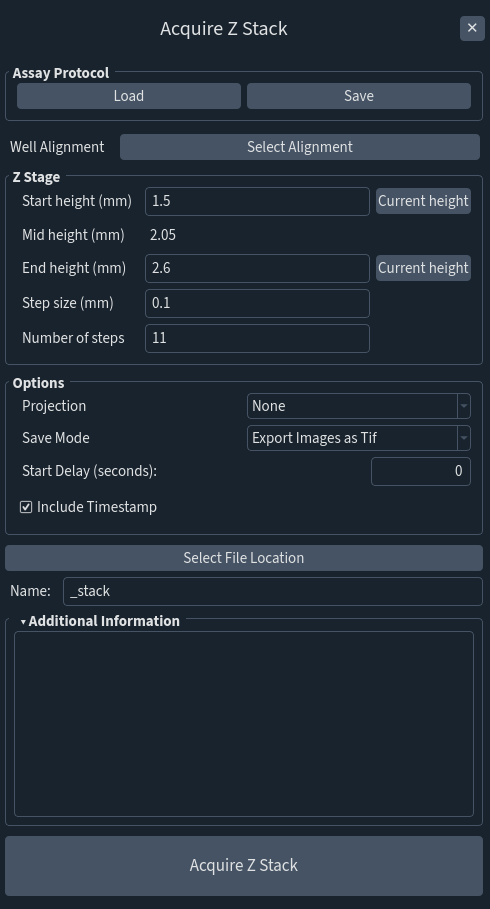
Step |
Function |
|---|---|
1 |
Open the MCAM software. |
2 |
Go to Assays > Acquire Z Stack. |
3 |
Enter a “Start height” and “End height” representing z-stage positions where the z-stack will start and stop. Sometimes it works well to find an optimal focal plane and choose this as the “Mid height” and then set the Start and End a millimeter below and above respectively. |
4 |
Enter either “Step size” or “Number of Steps” to determine the z-axis resolution. The second of these two parameters will update automatically. |
5 |
Select other options as needed regarding projection type, delays, and save mode. Please see the MCAM™ User Manual for more information regarding these options. |
6 |
Select a File Location. Always select a folder on the “MCAM_data” drive to store data from MCAM acquisitions. The “File Location” will be displayed in the panel once defined. |
7 |
Enter a Folder Name for the z-stack. A timestamp will automatically be appended to the chosen folder name. |
8 |
Adjust imaging settings in the left side panel to optimize image quality. |
9 |
Click Acquire Z Stack to initiate the acquisition. |