

Best Focus Panel
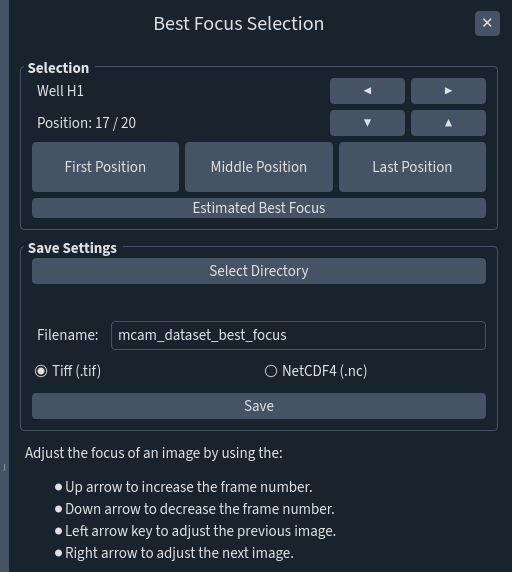
This feature allows users to find in-focus images for each image in the overall array.
Step |
Function |
|---|---|
1 |
Open the MCAM Viewer and click the Open Dataset button. Click into the raw z-stack of interest, then click Open in the popup to open raw z-stack in MCAM Viewer. Note: this tool is only available for stacks not videos. |
2 |
Go to Tools > Best Focus to open theBest Focus Selection Panel. Upon opening the panel, an estimated best focus will be generated. Once completed, the interface will automatically zoom to Well H1 and show the best focus frame. Click on any well to see its corresponding estimated best focus. |
3 |
If the estimated best focus is not ideal, it can also be optimized manually by using the arrows and position buttons in the Selection Panel. See image above for specifications of what each arrow does. Again, this can be done for each individual well until ideal focus is achieved (see examples below for an in focus and out of focus image). |
4 |
Under Save Settings click on Select Directory to choose the file location where the Best Focus Image will be saved. As a default it will open up the file location of the raw z-stackchosen in step 1. Additionally, choose the save format (either TIFF or NetCDF4). |
6 |
Click Save to compile and save the Best Focus Images. |
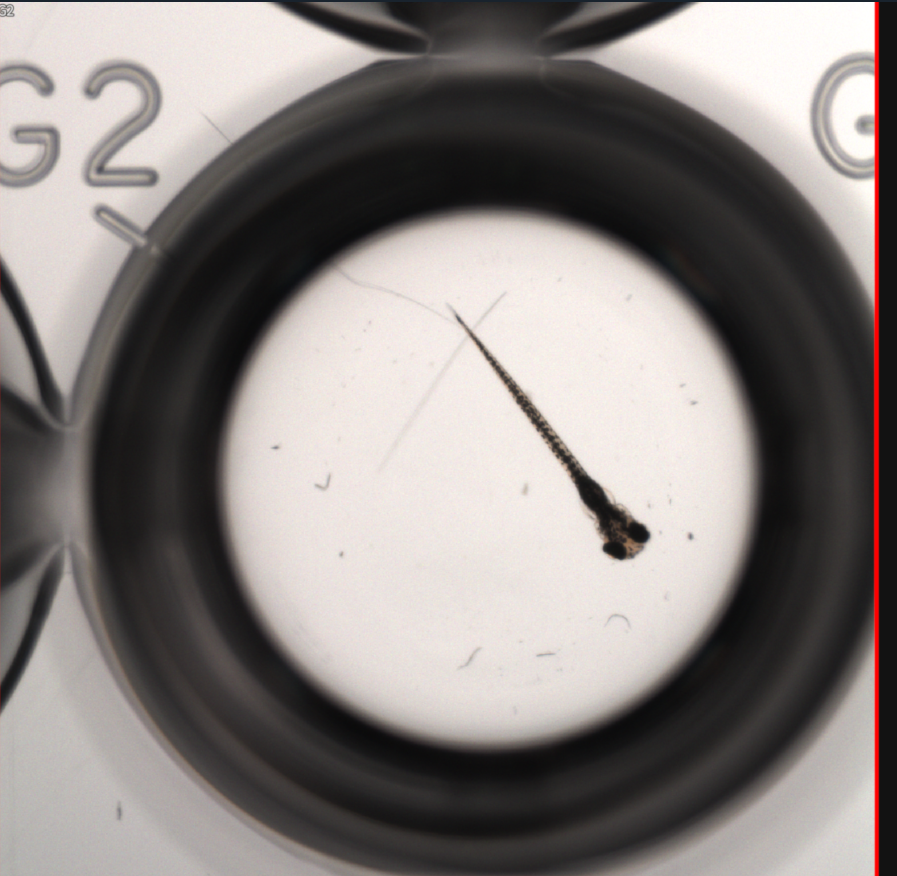
In focus image.
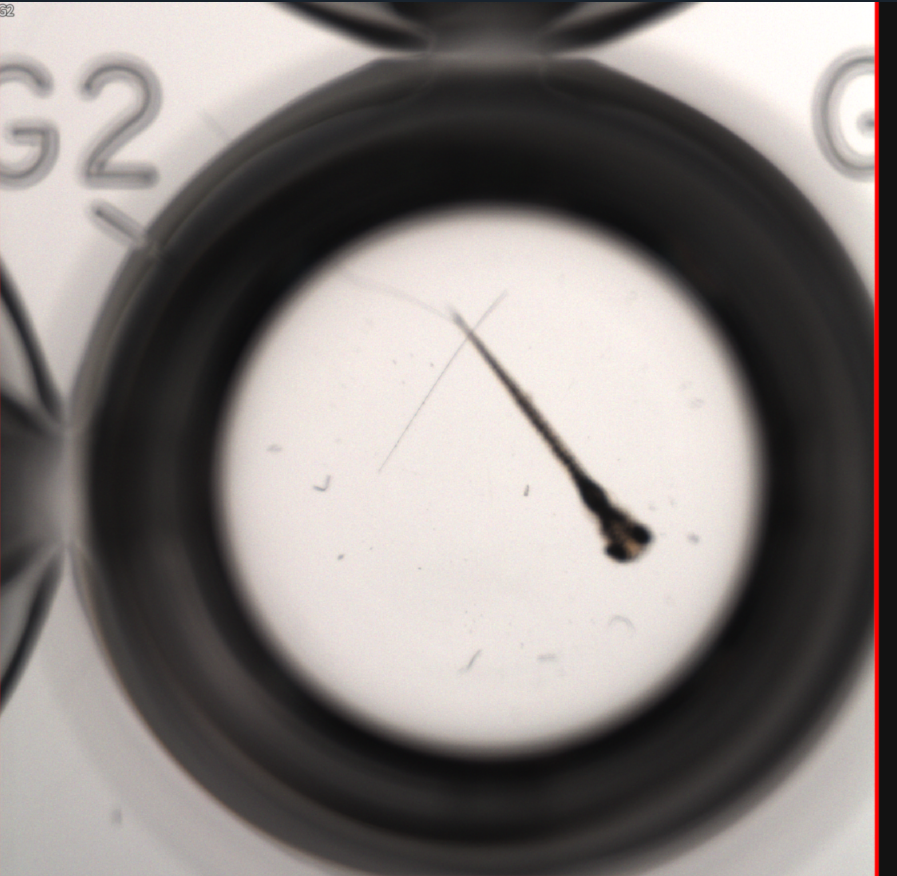
Out of focus image.