

Acquire a Video
Videos can be streamed and acquired from all cameras of the MCAM simultaneously.
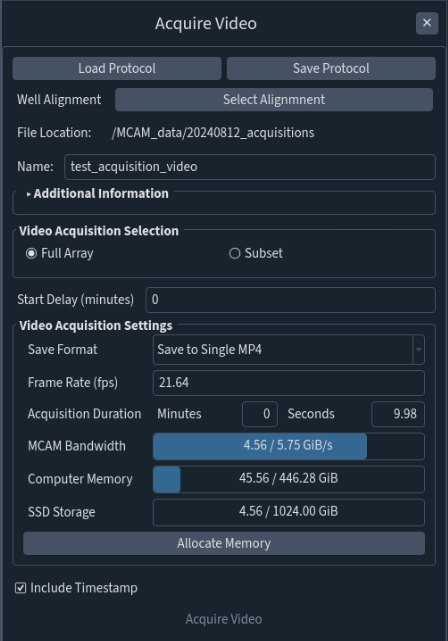
Step |
Function |
|---|---|
1 |
Open the MCAM software. |
2 |
Go to Assays > Acquire Video. |
3 |
Select a File Location. Always select a folder on the “MCAM_data” drive to store data from MCAM acquisitions. The “File Location” will be displayed in the panel once defined. |
4 |
Enter a Name for the acquisition. A timestamp will automatically be appended to the selected name. |
5 |
A start delay is optional and can be entered to delay the acquisition start from the time “Acquire Video” is clicked. |
6 |
Select Save Format. It is recommended to compress videos during acquisition by saving to MP4 format. |
7 |
Define Frame Rate. The current maximum values for High resolution, Standard and High Frame Rate resolutions are 23, 80, and 160 fps respectively. Acquiring at high frame-rates increases data sizes, so it is recommended to minimize the frame-rate for your application in order to decrease data sizes. |
8 |
Define Acquisition Duration. |
9 |
The three status bars reflect estimated system performance and storage capacity. Ensure that all three bars are blue. If any are red, modify imaging parameters to allow acquisition. |
10 |
Click Allocate Memory to prepare the system for acquisition. |
11 |
Click Acquire Video to initiate the acquisition. |