

Model Training - Object Detection
Object detection and segmentation are two closely coupled processes when quantifying physical characteristics of cells and organoids. First, the software finds objects of interest and places a box around them. Then these boxed regions of the image are targeted for segmentation of the object. Accurate object detection is key to proper segmentation.
The model training - objection detection tool allows users to train custom vision models for their unique biological samples by themselves. When the standard MCAM object detection model does not meet the necessary accuracy, these custom models can then be deployed to accurately identify and measure those unique samples.
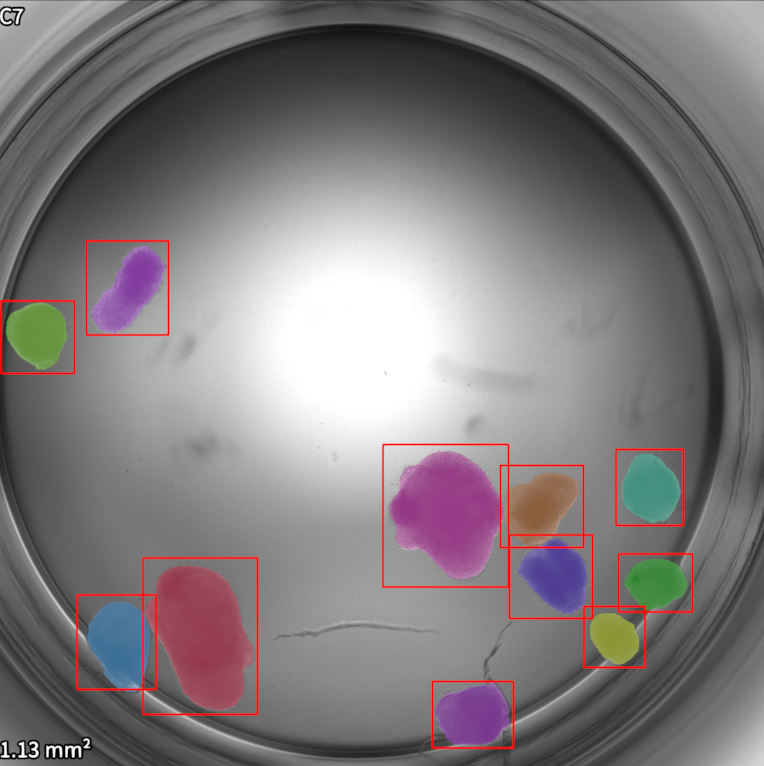
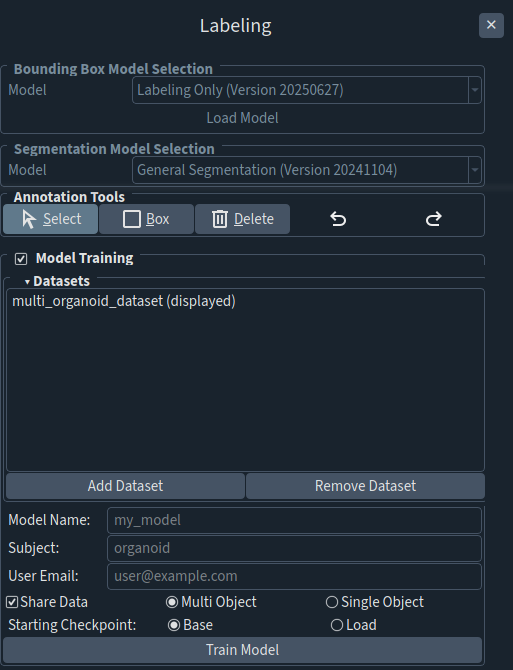
(Left) One well containing multiple detected (indicated by red boxes) and segmented organoids. (Right) The box labeling panel with model-training widget.
Step |
Function |
|---|---|
1 |
Open a dataset in MCAM Viewer. |
2 |
Navigate to Tools > Labeling. A panel will open on the right. |
3 |
Label object(s)-of-interest. Please see the “Labeling Tool” section for more information. |
4 |
Optional: Click the arrowhead left of “Datasets” under “Model Training” to expand the “Model Training” box. Click “Add Dataset” to add other labeled dataset(s) for training**.** |
5 |
Enter a Model Name, Subject, and User Email. |
6 |
Select “Multi Object” or “Single Object”. * Multi Object: The model will detect multiple objects per field-of-view. * Single Object: The model will detect one object per field-of-view. |
7 |
Select “Base” or “Load” as the starting checkpoint. * Base: Model training starts from one of Ramona’s base models. * Load: Model training builds on existing trained models. + Select the trained model you want to start from with the newly-labeled dataset. |
8 |
Click “Train Model” to begin the model-training process. |
9 |
A window will appear once the training is complete, with the information regarding the accuracy of the model. The newly trained model is saved in the directory “/MCAM_data/ml_data/models”. |
10 |
To use the newly trained model, open the Segmentation panel. |
11 |
Click Load Model and select the “model_registry_entry.json” file within the model directory. |