

Stitching Multi-Image Well Datasets
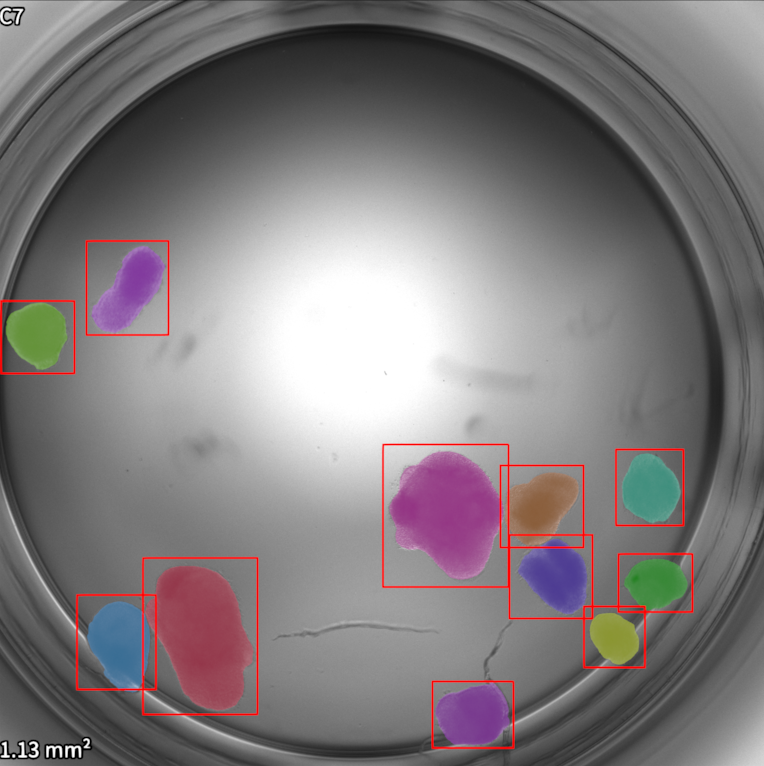
This workflow utilizes the Well Alignment tool to stitch the images from acquisitions that contain multiple images per well together at a desired resolution. This is useful for data reduction as well as simplifying downstream analysis. The newly exported dataset can then be used with analysis panels such as the Segmentation panel or the Brain Organoid Segmentation panel.
Step |
Function |
|---|---|
1 |
Acquire a well plate scan using an acquisition mode that captures multiple images per well such as the “Full Well Scan” acquisition. |
2 |
Locate and open your acquired XYZC-stack acquisition dataset in the MCAM Viewer by either double clicking on the metadata.nc file or opening the Viewer software from the left desktop toolbar and drag and drop the metadata.nc file into the Viewer. |
3 |
Open the Well Alignment panel by navigating to Tools>Well Alignment in the viewer top level menu. |
4 |
Specify the well diameter, columns and rows of your acquired well plate. |
5 |
Click Detect Well Alignment |
6 |
Verify the red circles diameter fits your wells across images |
7 |
Drag the 4 corner circles to their correct positions fit over the corner wells using the middle red circles |
8 |
Click Update Well Alignment |
9 |
Check Stitched Wells |
10 |
Check Stitched Resolution |
11 |
Specify desired resolution. (3072 recommended) |
12 |
(Optional) Click Save Well Alignment to save this protocol for future use |
13 |
Click Export Well Images to export a stitched dataset. This dataset can then be used in our analysis panels such as the Segmentation panel. |