

System Administration
Updating Ubuntu
Ramona Optics recommends that you keep your MCAM Workstation up to date with the latest Long Term Support (LTS) Release of Ubuntu. At the time of writing, this is version 24.04. We do not recommend non-LTS versions of Ubuntu such as 24.10, 25.04, or 25.10. While we do not have a set rule for when to upgrade to the latest LTS version, we typically recommend that you upgrade to the LTS release about 8 months after it is released. This ensures that the LTS version has had time to be tested with the MCAM and that any issues have been resolved by our software team.
January 2025: Recommendation to upgrade to Ubuntu 24.04 LTS
January 2027: Anticipated recommendation to upgrade to Ubuntu 26.04 LTS.
Identifying your Ubuntu version
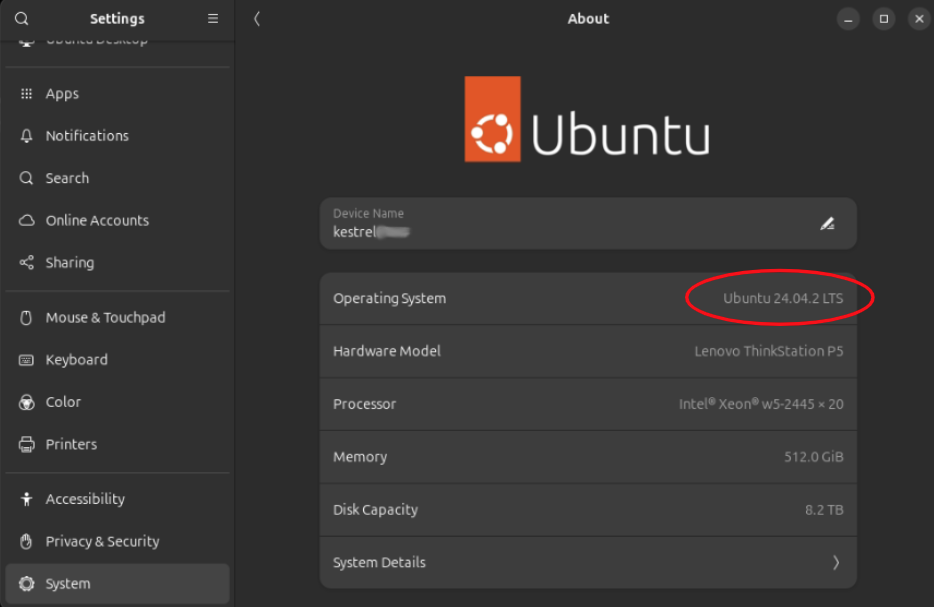
To identify your Ubuntu version, search for “About” in the application overview. Once opened, the version of Ubuntu is shown as the “Operating System” encircled in red in the image below.
If you are using:
Ubuntu 24.04: Recommendation to perform regular Ubuntu updates as prompted by the Software Update.
Ubuntu 22.04: We recommend that you consider upgrading to Ubuntu 24.04. However, it is not required at this time.
Ubuntu 20.04: We recommend that you upgrade to Ubuntu 24.04.
Before upgrading from one version of Ubuntu to an other, we recommend that you contact Ramona Optics.
Linux kernel compatibility
The MCAM driver can be found on our Ubuntu ppa and installed on Ubuntu 20.04, 22.04, and 24.04. To date, we have tested with linux kernel versions 5.4 through 6.14. Each MCAM Workstation is pre-configured to keep the last three (3) versions of the kernel installed. This is done to ensure that in the case that a new kernel update is incompatible with the MCAM, the previous kernel can be used.
Performing an Ubuntu Upgrade
As of version MCAM Version 0.19.247 released on April 28, 2025, users of Ubuntu 20.04 will receive a warning that they should update their system installation. We recommend Ubuntu 24.04 since it provides important improvements to compatibility with external solid state drives (SSDs) used to transfer data from the MCAM.
We recommend that you contact a Ramona Optics representative before upgrading your system. The upgrade process can take up to 3 hours with a fast internet connection and as such we recommend that you reserve the MCAM for half a day to complete the upgrade process.
Prior to starting the upgrade process, we recommend that you backup your data and configuration files. You will need an internet connection to complete the upgrade process.
Prepare for the Upgrade
This phase is expected to take up to 1 hour and can be completed without the presence of a Ramona Optics representative.
30 minutes: Ensure that your system has the latest updates installed for the current version of Ubuntu.
sudo apt update
sudo apt upgrade --yes
sudo apt autoremove --yes
2 minutes: Restart the MCAM Workstation.
2 minutes: Ensure that the MCAM Workstation can continue to connect to the MCAM by starting up the Ramona Software.
Perform the Ubuntu Upgrade
This phase can take up to 2 hours to completed. It is recommended to complete the following steps below with a Ramona Optics representative.
2 minutes: Close all instances of the MCAM Software.
2 minutes: Power off the MCAM, but leave the MCAM workstation powered on.
90 minutes: Run the following command to upgrade your system to the latest version of Ubuntu. Follow the instructions on the screen to complete the upgrade.
sudo do-release-upgrade --allow-third-party
2 minutes: Reconfigure the system to be optimized for usage with the MCAM.
sudo add-apt-repository --yes ppa:ramonaoptics/ppa
sudo apt install qdma-pf-dkms dma-ctl ramona-teensy-udev drop-caches

# Configure GRUB to show all the kernels easily with a 3 second timeout
sudo sed -i '/^GRUB_TIMEOUT_STYLE/s/hidden/menu/' /etc/default/grub
sudo sed -i '/^GRUB_TIMEOUT/s/=0/=3/' /etc/default/grub
if [[ ! $(grep "^GRUB_DISABLE_SUBMENU=y" /etc/default/grub) ]]; then
    echo "GRUB_DISABLE_SUBMENU=y" | sudo tee -a /etc/default/grub
else
    echo "Submenu already disabled, nothing to do"
fi


# "Increasing file descriptor limits."
sudo sed -i -E 's/^#?DefaultLimitNOFILE=*/DefaultLimitNOFILE=65535/' /etc/systemd/user.conf
sudo sed -i -E 's/^#?DefaultLimitNOFILE=.*:/DefaultLimitNOFILE=65535:/' /etc/systemd/system.conf

sudo tee -a /etc/security/limits.conf <<EOF
* hard nofile 65535
* soft nofile 65535
EOF

echo "session required pam_limits.so" | sudo tee -a /etc/pam.d/common-session
echo "session required pam_limits.so" | sudo tee -a /etc/pam.d/common-session-noninteractive
2 minutes: Restart the MCAM Workstation.
- 5 minutes: Perform a “cold boot” test procedure:
Power off the MCAM Workstation.
Unplug the power cord from the wall for the MCAM Workstation.
Wait 10 seconds
Power on the MCAM (but not the MCAM Workstation).
Wait 10 seconds
Plug the MCAM Workstation power cord back into the wall.
Wait 10 seconds
Power on the MCAM Workstation.
2 minutes: Start the Ramona Software and ensure that the MCAM is connected.
Local Accounts vs LDAP/SSSD Configuration
The MCAM Workstation is pre-configured with a single user account called
ramona. This account is used to run the MCAM software and to store the data
acquired by the MCAM.
We do not recommend using LDAP or SSSD configuration for the MCAM Workstation as this may make the MCAM Workstation unusable in the case of any network issues. It will also make it more challenging for the Ramona Optics team to provide support for the MCAM Workstation.
Firewall and Anti-virus Configuration
The MCAM workstation is not configured with a firewall or anti-virus software. This is to ensure optimal performance of the MCAM acquisition and analysis software. We do not recommend installing any firewall or anti-virus software on the MCAM Workstation as it may interfere with the performance of the system. Many users make use of an external firewall ensuring that the MCAM’s performance is not affected.
At the very least, we require the following websites to be accessible to the MCAM Workstation to enable software updates (both http and https protocols):
Ramona Optics Website for Documentation: docs.ramonaoptics.com
Operating System Updates (Ubuntu Updates)
Ramona MCAM Software Updates:
Anydesk specifically requires the clients to use the TCP-Ports: 80, 443, and 6568. Please see Anydesk’s Documentation for more information.
Administrator Account Settings
By default, Ramona’s systems are delivered with a single user account called ramona. The MCAM software is installed in a user specific directory in order to update it independently from the operating system. For simplicity, the account is also made to be an Ubuntu administrator account. This provides the Ramona support team with the ability to troubleshoot system configuration challenges that may arise.
If your IT policies require the use of a different administrator account, you may create a new administrator account and provide the Ramona support team with the credentials (username and password) to this new account.
Without the credentials, our ability to help you troubleshoot issues will be severely limited, and may impact our ability to provide timely support.
To create a separate administrator account:
Follow these instructions to create a new user on Ubuntu https://help.ubuntu.com/stable/ubuntu-help/user-add.html. * Ensure you select the option to make the new user an administrator. * We recommend all lowercase letters for the username without any spaces or special characters. * Unless your IT policies recommend otherwise, we recommend the username admin. * Write down the username and password of the new account in a secure location. * Share the administrator username and password with the Ramona team to ensure smooth future support.
Logout of the ramona account.
Login to the new administrator account (e.g. admin).
Open the user settings by searching for “Users” in the application overview.
Click on the ramona user account.
Toggle the “Administrator” switch to off.
Logout of the new administrator account.
Login to the ramona account to continue using the MCAM software as normal.